Product: CA Plex
Release: 7.1
This scenario describes how as a CA Plex Developer, you can host ActiveX controls in WinC and C# Client applications.
This scenario provides you with the following items:
This Knowledge Base Article constitutes a portion of the official CA product documentation for this CA product. This Knowledge Base Article is subject to the following notices, terms and conditions.
As a CA Plex Developer, you can host ActiveX controls in WinC and .NET Client applications.
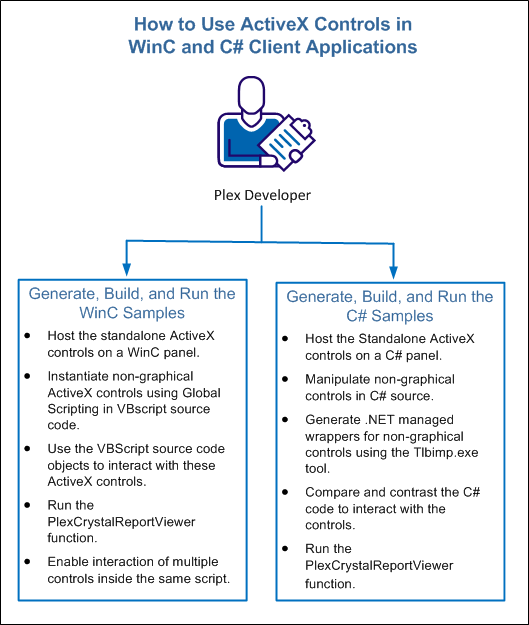
The following diagram illustrates how you can host ActiveX controls on the CA Plex panels:
To host the ActiveX controls in your .NET Client applications, ensure that you have .NET Client knowledge.
Note: For more information about the .NET Client and hosting ActiveX controls in .NET Client applications, see the sample document—An Introduction to CA Plex .NET Client. The sample document is at ...\Documents\CA\Plex\7.1\Samples\Dot Net Client\ folder.
To run the samples that are contained in this sample model, have the correct ActiveX controls that are registered on the systems that you want to run the samples on.
If you want to run the .NET Client examples that are contained in this sample, you require a valid license for the CA Plex Option for Enterprise .NET. If you do not have a license for this option, then a 30-day trial license is granted the first time that you generate a CA Plex function of language C# that scopes a panel.
In addition, install the prerequisites that are shown in the following table, to run each sample function:
Note: In some cases, more than one control is required for a given sample.
|
Function Name |
WinC |
C# |
ActiveX Version |
ActiveX Name(s) |
Install From |
|---|---|---|---|---|---|
|
Active Slider |
Yes |
Yes |
Microsoft Visual Basic 6.0 Common Controls |
Comctl32.ocx |
http://www.microsoft.com/en-us/download/details.aspx?id=10019 |
|
Global Scripting |
Yes |
No |
Microsoft Excel 2013 |
Excel.exe |
Any Valid MS Office Install |
|
PlexCrystalReportViewer |
Yes |
Yes |
Crystal Reports for Visual Studio 2005 (version 10.2) |
CRViewer.dll Craxddrt.dll |
MS Visual Studio 2005 Professional Install |
|
PlexPdfViewer |
Yes |
Yes |
Adobe Reader XI (version 11.0.03) |
|
http://get.adobe.com/reader/ |
You can generate, build, and run four different ActiveX sample functions that require six individual ActiveX controls in the WinC applications.
Example:
The following example showcases how you can:
Follow these steps:
The Model Configuration dialog displays the configuration that you have set.
The functions are generated and built without any errors or warnings.
The ActiveX Control Sample dialog opens.
This standalone panel hosts two ActiveX controls—TabStrip and Slider controls, which are shipped with comctl32.ocx.
Note:
Set objXL = CreateObject("Excel.Application")
The object is now created.
Note: If you close the Excel spreadsheet before the rotation completes, you are prompted with a VBScript error.
Note: If you are not licensed to use the CA Plex Option for .NET Enterprise, you can still generate and build the sample in the WinC or WinC/WinNTC variant and add data.
The MDI Parent dialog shows some sample Order Header data added to the Dot Net Client sample:
The Panel dialog opens prompting you to enter your ODBC connection details.
The main function launches.
A sample report is shipped with the sample model in the ...\Beginners ActiveX\Resources\OrderHeaderReport.rpt location.
The CA Plex Viewer dialog opens displaying the sample report.
Note:
This function works similarly to the PlexCrystalReportViewer example.
The selected document opens in the Adobe PDF Reader ActiveX Viewer.
This script shows you how you can call ActiveX control methods, passing Plex field values as parameters.
You have now generated, built, and ran four different ActiveX sample functions that required six individual ActiveX controls.
Use the following example to generate, build, and run C# samples using the ActiveX controls.
Example:
The following example showcases how you can:
Follow these steps:
The Model Configuration dialog displays the configuration that you have set.
The functions are generated and built without any errors or warnings.
The ActiveX Control Sample dialog opens.
This standalone panel hosts two ActiveX controls—TabStrip and Slider controls, which are shipped with comctl32.ocx.
Note:
Before you run the PlexCrystalReportViewer function, ensure that you had run the Dot Net Client sample and added some sample data.
Note: If you are not licensed to use the CA Plex Option for .NET Enterprise, you can still generate and build the sample in the WinC or WinC/WinNTC variant and add data. If you have already created a sample, you can reuse it.
The MDI Parent dialog shows some sample Order Header data added to the Dot Net Client sample:
The Panel dialog opens prompting you to enter your ODBC connection details.
The main function launches.
A sample report is shipped with the sample model in the ...\Beginners ActiveX\Resources\OrderHeaderReport.rpt location.
The CA Plex Viewer dialog opens displaying the sample report.
Note:
This function works similar to the PlexCrystalReportViewer example.
The selected document opens in the Adobe PDF Reader ActiveX Viewer.
You have now generated, built, and ran the C# ActiveX sample functions using the ActiveX controls.
This Documentation, which includes embedded help systems and electronically distributed materials, (hereinafter referred to as the “Documentation”) is for your informational purposes only and is subject to change or withdrawal by CA at any time. This Documentation is proprietary information of CA and may not be copied, transferred, reproduced, disclosed, modified or duplicated, in whole or in part, without the prior written consent of CA.
If you are a licensed user of the software product(s) addressed in the Documentation, you may print or otherwise make available a reasonable number of copies of the Documentation for internal use by you and your employees in connection with that software, provided that all CA copyright notices and legends are affixed to each reproduced copy.
The right to print or otherwise make available copies of the Documentation is limited to the period during which the applicable license for such software remains in full force and effect. Should the license terminate for any reason, it is your responsibility to certify in writing to CA that all copies and partial copies of the Documentation have been returned to CA or destroyed.
TO THE EXTENT PERMITTED BY APPLICABLE LAW, CA PROVIDES THIS DOCUMENTATION “AS IS” WITHOUT WARRANTY OF ANY KIND, INCLUDING WITHOUT LIMITATION, ANY IMPLIED WARRANTIES OF MERCHANTABILITY, FITNESS FOR A PARTICULAR PURPOSE, OR NONINFRINGEMENT. IN NO EVENT WILL CA BE LIABLE TO YOU OR ANY THIRD PARTY FOR ANY LOSS OR DAMAGE, DIRECT OR INDIRECT, FROM THE USE OF THIS DOCUMENTATION, INCLUDING WITHOUT LIMITATION, LOST PROFITS, LOST INVESTMENT, BUSINESS INTERRUPTION, GOODWILL, OR LOST DATA, EVEN IF CA IS EXPRESSLY ADVISED IN ADVANCE OF THE POSSIBILITY OF SUCH LOSS OR DAMAGE.
The use of any software product referenced in the Documentation is governed by the applicable license agreement and such license agreement is not modified in any way by the terms of this notice.
The manufacturer of this Documentation is CA.
Provided with “Restricted Rights.” Use, duplication or disclosure by the United States Government is subject to the restrictions set forth in FAR Sections 12.212, 52.227-14, and 52.227-19(c)(1) - (2) and DFARS Section 252.227-7014(b)(3), as applicable, or their successors.
Copyright © 2014 CA. All rights reserved. All trademarks, trade names, service marks, and logos referenced herein belong to their respective companies.